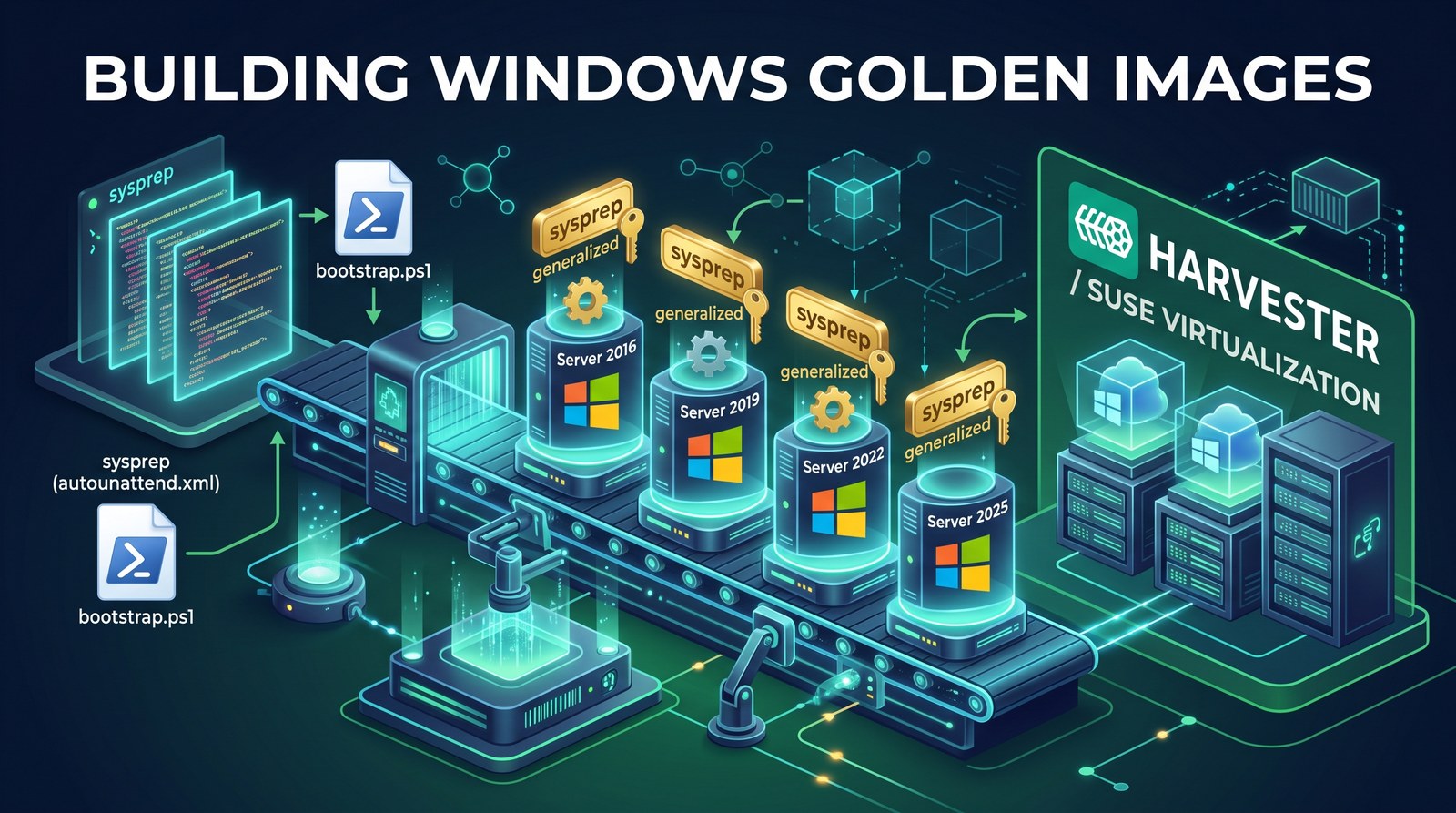
TL;DR
You need three things:
- A Windows Server ISO, uploaded under Images. Server 2022 and 2025 are tested, and evaluation ISOs work.
- A ready-made answer file for your version: Server 2022 or Server 2025.
- SUSE Virtualization 1.9, whose VM create form has a Windows Unattended & Sysprep section once the VM’s OS type is Windows.
Then:
- Create a VM from the
windows-iso-medium-templatetemplate and attach your ISO. - Set the root disk to 36 GiB.
- In Advanced Options, set OS Type to Windows. That reveals the Windows Unattended & Sysprep Configuration section: choose Create New, paste the answer file and create the VM.
- About 20 minutes later the VM turns itself off. Its disk is your golden image: export it to an image (or shrink it first) and create Windows VMs from it with a cloud-config.
SUSE Virtualization 1.9.1 adds a windows-image-template that simplifies that last
step. Everything below explains what happens under the hood and the other ways to
build.
How it all fits together
A Linux cloud image on SUSE Virtualization (Harvester) personalizes itself on first boot: you pick the image, add a cloud-config, and the VM comes up with its own hostname, users and disk size. My harvester-windows-cloudbase project gives Windows the same experience. You start from a stock Windows ISO, and an unattended build produces a sysprepped image that any number of VMs can clone.
This post explains each sysprep file in the repo, which one to pick, and the full path from ISO to running VM.
What the image contains
- SUSE VMDP (Virtual Machine Driver Pack): signed virtio drivers for disk and network, plus the QEMU guest agent.
- Cloudbase-Init, the Windows counterpart of cloud-init. It reads the cloud-config
that SUSE Virtualization attaches to each VM and applies the hostname, users,
passwords and
runcmdon first boot. - A generalized install.
sysprep /generalizeremoves the machine identity, so every clone gets its own. - Automatic disk growth. Cloudbase-Init’s
ExtendVolumesPlugingrowsC:to the VM’s disk, so one small image serves any disk size.
How the build works
A build VM boots with four devices: the Windows ISO, the VMDP driver CD, a sysprep CD holding the answer file, and an empty root disk. From there everything is unattended:
windowsPEpass. Windows Setup findsautounattend.xmlon the sysprep CD, loads the virtio disk drivers from the VMDP CD, partitions the root disk and installs the edition named in the answer file.specializeandoobeSystempasses. Setup configures the machine, logs on as Administrator and runs the answer file’sFirstLogonCommands.- Bootstrap.
FirstLogonCommandsstartsbootstrap.ps1, which freezes Windows Update, the Store and Edge Update, installs VMDP and Cloudbase-Init, deletes build files and zeroes free space. It logs toC:\winbuild.log. - Generalize. The script runs
sysprep /generalize /oobe /shutdownwith Cloudbase-Init’s own unattend file, which re-arms Cloudbase-Init for the next boot. The VM powers off after about 20 minutes.
That powered-off root disk is the golden image. You register it as a SUSE Virtualization image and delete the build VM.
KubeVirt’s
sysprep volume
provides the sysprep CD: it turns a Kubernetes Secret into an ISO, and every key in the Secret becomes a file
on that ISO.
Pick your answer file
All files live in the repo’s kubectl/
folder. There are two layouts:
- Two-file: a base answer file plus
bootstrap.ps1as two keys in the Secret.FirstLogonCommandssearches the CD drives for the script. Use this withkubectlor Terraform. - Self-contained: a single
autounattend.xmlwithbootstrap.ps1embedded in it as base64. SUSE Virtualization 1.9’s UI writes exactly one key, so this is the layout for the UI.
| File | Layout | Windows | Status |
|---|---|---|---|
Autounattend-2022.xml | two-file (with bootstrap.ps1) | Server 2022 | tested |
Autounattend-2025.xml | two-file (with bootstrap.ps1) | Server 2025 | tested |
Autounattend-w11.xml | two-file (with bootstrap.ps1) | Windows 11 | experimental |
Autounattend-selfcontained-2022.xml | self-contained | Server 2022 | tested |
Autounattend-selfcontained-2025.xml | self-contained | Server 2025 | tested |
Autounattend-selfcontained-w11.xml | self-contained | Windows 11 | experimental |
Autounattend-selfcontained-coriolis-2022.xml | self-contained | Server 2022 | tested |
Autounattend-selfcontained-coriolis-2025.xml | self-contained | Server 2025 | tested |
Two more files complete the set:
bootstrap.ps1is the first-logon script. It’s the same for every version.build-answerfile.pybuilds a self-contained file from a base answer file andbootstrap.ps1. You need it only after editing either one, or to change the edition.
Windows 11 is experimental because sysprep hangs on Sysprep_Clean_Validate_Opk in
about half of my runs; the install itself completes. Use the coriolis files to build a
worker image for Coriolis migrations into SUSE
Virtualization: they add a WinRM HTTPS listener and make Cloudbase-Init create the user
that Coriolis sends. A real VMware-to-SUSE Virtualization migration passed its worker
login with these images. Use the plain files for everything else.
Match the edition to your ISO
Each answer file names the Windows edition to install, for example
Windows Server 2022 SERVERSTANDARD. Setup compares that string byte for byte with
the images in the ISO’s sources\install.wim. If it doesn’t match, Setup shows the
edition picker and waits for a click that never comes, and the build VM just keeps
running.
Retail and evaluation ISOs use the same names, so the defaults work for both. For Datacenter, generate a new file:
$ cd kubectl/
$ ./build-answerfile.py -w 2022 --edition 'Windows Server 2022 SERVERDATACENTER'
wrote kubectl/Autounattend-selfcontained-2022.xml (flavor: standard)
  bootstrap.ps1: 19837 bytes -> 26452 base64 chars in 38 chunks
  longest CommandLine: 749 chars (limit 1024)
To list the editions in your own ISO, run wiminfo sources/install.wim on Linux or
dism /Get-WimInfo /WimFile:D:\sources\install.wim on Windows. Server Core isn’t
supported, because bootstrap.ps1 assumes the Desktop Experience.
Watch the last line of that output. Windows rejects the answer file if any
FirstLogonCommands command line is longer than 1024 characters, so the generator
splits the embedded script into chunks and checks the limit.
Before you start
- SUSE Virtualization 1.9 for the UI path; 1.8 works with
kubectlor Terraform. - A Windows Server 2022 or 2025 ISO uploaded under Images.
- A StorageClass you trust for VM disks.
harvester-longhornexists on every cluster.
Find your ISO’s short name and its own StorageClass:
kubectl get virtualmachineimage -A -o custom-columns=\
'NS:.metadata.namespace,NAME:.metadata.name,DISPLAY:.spec.displayName,SC:.status.storageClassName'
SUSE Virtualization gives every image a dedicated StorageClass, and the build VM’s CD-ROM volume has to use that class; with any other class, the ISO clone comes up empty and the VM stops at “No Bootable Device”.
Build from the UI
SUSE Virtualization 1.9 adds a Windows Unattended & Sysprep section to the VM create form.
- Go to Virtual Machines → Create, and choose the
windows-iso-medium-templatetemplate. It ships with 1.9 and already has the boot CD-ROM, the VMDP driver CD, a virtio root disk and the Hyper-V enlightenments described in Windows VMs on SUSE Virtualization. - On the CD-ROM disk, set Image to your Windows ISO.
- Shrink the root disk to 36 GiB. An exported image keeps the build disk’s
size, and
C:grows when a VM is deployed, so build small. - Under Advanced Options, set OS Type to Windows. Only then does the Windows Unattended & Sysprep Configuration section appear.
- Choose Create New and paste the whole content of
Autounattend-selfcontained-<version>.xml. - Click Create, then wait for the VM to stop by itself.
Build with kubectl
With the two-file layout, bootstrap.ps1 stays readable in the Secret:
cd kubectl/
kubectl create secret generic winbuild-unattend \
  --from-file=autounattend.xml=Autounattend-2022.xml \
  --from-file=bootstrap.ps1=bootstrap.ps1

# Edit winbuild-vm.yaml first: ISO image, ISO StorageClass, root disk StorageClass
kubectl apply -f winbuild-vm.yaml
kubectl wait --for=jsonpath='{.status.printableStatus}'=Stopped \
  vm/winbuild --timeout=45m
For automation, the repo’s terraform/ folder runs the same build with one terraform apply and a
windows_version variable (2022, 2025 or w11).
Capture the image
Register the stopped root disk as an image:
apiVersion: harvesterhci.io/v1beta1
kind: VirtualMachineImage
metadata:
  name: win2022
  namespace: default
spec:
  displayName: win2022
  backend: cdi
  sourceType: export-from-volume
  pvcName: winbuild-rootdisk
  pvcNamespace: default
  targetStorageClassName: harvester-longhorn
Two details:
- Always set
targetStorageClassName. Without it, the image silently lands on the cluster’s default StorageClass. - Keep
displayNameshort and without spaces. SUSE Virtualization 1.9 copies it into a label, and labels can’t contain spaces.
This image keeps the full 36 GiB virtual size. For a smaller image, use the shrink Job in Extra: shrink the image instead of this export.
Once the image shows Imported, delete the build VM, its disks and the
winbuild-unattend Secret.
Extra: shrink the image
An image has two sizes:
- Virtual size: the disk a new VM starts with. It equals the build disk, 36 GiB.
- Physical size: the data actually stored, and copied whenever a VM is created.
Smaller is better for both, because Cloudbase-Init grows C: on deploy anyway.
My repo’s shrink Job works on the stopped build disk and has two modes:
compactconverts the disk to qcow2 and drops the zeroed free space. It only reduces the physical size, and it never changes the partitions.shrinkalso resizes the NTFS file system onC:to its minimum plus 1 GiB of slack, shrinks the partition to match and cuts the virtual disk down to that size.
Either way, the Job then creates the image and uploads the qcow2 to SUSE Virtualization’s in-cluster upload API. No Rancher or SUSE Virtualization token is needed; the Job’s own ServiceAccount creates the image.
Run it
Run the Job before you delete the build disk, in the same namespace as that disk.
Load the script as a ConfigMap:
cd shrink-export/
kubectl -n default create configmap disk-shrink-script \
  --from-file=entrypoint.sh=entrypoint.sh
Edit
shrink-and-upload-job.yaml. These are the values to set:env: - name: IMAGE_NAME value: win2022 - name: IMAGE_DISPLAY value: win2022 - name: BACKEND value: "cdi" # or "backingimage" for a Longhorn backing image - name: TARGET_STORAGECLASS value: "harvester-longhorn" # cdi only: where the image is stored - name: MODE value: "shrink" # or "compact" # ... volumes: - name: src persistentVolumeClaim: claimName: winbuild-rootdiskApply it and follow the log:
kubectl -n default apply -f shrink-and-upload-job.yaml
kubectl -n default logs -f job/disk-shrink
This is the log from my Server 2022 build (trimmed):
[18:46:50] mode: shrink
[18:46:50] windows partition: /dev/mapper/loop8p2 (partition #2, start 525336576B)
[18:46:51] NTFS min=11654688768B, resizing filesystem to 12728664064B (+1024MiB slack)
[18:46:52] shrinking the partition table entry #2...
[18:46:52] converting to compact qcow2 at /work/disk.qcow2 ...
[18:51:28] shrinking qcow2 virtual size to 13255049216B ...
[18:51:28] creating VirtualMachineImage default/win2022 (backend=cdi, sourceType=upload, targetSC=px-csi-replicated)
[18:58:43]   HTTP 200
[18:58:46] done: VirtualMachineImage default/win2022
Shrinking took the image from 36 GiB to 12.3 GiB virtual and 9.27 GiB physical. Most of the 12 minutes went to the conversion and the upload; earlier runs of the same Job on Longhorn finished in about 3 minutes.
Before you shrink
- Stop the build VM and leave it stopped. A running VM holds the disk the Job needs to attach.
- Shrink only a disk that sysprep shut down cleanly.
shrinkrefuses to touch an NTFS volume that isn’t consistent;compactis the safe choice for anything else. - Set
TARGET_STORAGECLASSwithcdi, or the image lands on the default class. CDI also stages the upload in a scratch volume on the default class, so that class needs free space too. - Storage that reports 4096-byte sectors is fine. Portworx volumes do, and the Job maps the disk through a 512-byte loop device automatically; see Portworx on SUSE Virtualization.
Deploy a VM from the image
Create a VM from the new image and give it a cloud-config:
#cloud-config
set_hostname: web01
users:
  - name: tux
    passwd: MyStr0ngPass!
    primary_group: Administrators
runcmd:
  - powershell.exe -Command "Install-WindowsFeature -Name Web-Server -IncludeManagementTools"
On first boot, Cloudbase-Init creates the user, runs the commands and extends C: to
the VM’s disk. Hostname changes take effect after the next reboot, because the image
doesn’t let Cloudbase-Init reboot the VM during first-boot setup (that caused boot
loops).
If you create the cloud-config Secret yourself rather than through the UI, give it
type: secret and the label harvesterhci.io/cloud-init-template: harvester.
Cloudbase-Init doesn’t care, but the UI’s Cloud Config tab only shows Secrets that
have both.
SUSE Virtualization 1.9.1 adds a windows-image-template for exactly this case: a
single root disk from a prepared image, a virtio network card and a cloud-init disk.
It’s in the 1.9.1 release candidates now.
Why the build freezes updates
sysprep /generalize fails with error 0x80073cf2 if any Microsoft Store app is
installed for one user but not provisioned for all users. A fresh install is
consistent, but the build VM has internet access. Windows Update, the Store and Edge
Update can each update an app for the logged-on Administrator mid-build, and that
breaks it.
bootstrap.ps1 therefore disables all three for the build, and the Server 2022 answer
file already stops Edge Update and Windows Update in the specialize pass, before
anyone logs on. A SetupComplete.cmd script that Windows runs once on every clone
turns them back on, so deployed VMs still get updates.
Troubleshooting
| Symptom | Cause and fix |
|---|---|
| “No Bootable Device” | ISO volume used a generic StorageClass; use the image’s own class |
| Build VM keeps running at the edition picker | Edition string doesn’t match install.wim; regenerate with --edition |
Error code: 0xD000A000 - 0x40031 (Server 2025) | Setup didn’t load the virtio-scsi driver; use the repo’s answer files, which point at the exact VMDP folder |
“The answer file is invalid” in oobeSystem | A FirstLogonCommands line is over 1024 characters; regenerate with build-answerfile.py |
0x80073cf2 in setuperr.log | App updated mid-build; rebuild from a fresh root disk with the current files |
| Deployed VM reboots in a loop | Old image without allow_reboot=false in Cloudbase-Init’s config; rebuild |
| Cloud-config not shown in the UI | Secret lacks type: secret or the cloud-init-template label |
Windows caches the answer file on the root disk, so after changing it, delete the root disk and build again; restarting the VM reuses the old copy. See the repo’s troubleshooting guide for each case in detail.
Takeaways
- For the UI, paste
Autounattend-selfcontained-<version>.xml; forkubectl, use the base file plusbootstrap.ps1. - Match the edition string to your ISO, and put the ISO volume on the image’s own StorageClass.
- Build on a 36 GiB disk, set
targetStorageClassNameon export, and keep image names short. - Deploy with a cloud-config, and let Cloudbase-Init handle the hostname, users and disk size.