WSO2’s open-cloud-datacenter project
includes a DBaaS operator for SUSE Virtualization (Harvester). You create a
DBInstance object, and the operator provisions a PostgreSQL VM with TLS, generated
credentials, a connection Secret and Prometheus monitoring. If you’ve used Amazon RDS,
the fields will look familiar: db.t3.micro, allocatedStorage, masterUsername.
This is a quick tour of version 0.1.0 on a single-node SUSE Virtualization v1.9 cluster. It works on its own: you don’t need the rest of the open-cloud-datacenter stack.
Step 1: Install the operator as a Harvester add-on
WSO2 ships the operator as a Helm chart, and SUSE Virtualization can install charts as
add-ons. I override two defaults through manager.args:
osVersion=24.04: database VMs boot from a pre-built Ubuntu image, and the operator picks one OS release for every instance it manages. Ubuntu 24.04 is the only image I built.storageClass=ceph-rbd: database disks go on my external Ceph cluster instead of Longhorn.
manager.args replaces the chart’s argument list rather than adding to it, so repeat
the two upstream defaults:
apiVersion: harvesterhci.io/v1beta1
kind: Addon
metadata:
  name: dbaas-operator
  namespace: dbaas-system
  labels:
    addon.harvesterhci.io/experimental: "true"
spec:
  enabled: true
  repo: ""
  chart: oci://ghcr.io/wso2/charts/dbaas-operator
  version: 0.1.0
  valuesContent: |-
    manager:
      args:
        - --operator.leaderElection.enabled=true
        - --observability.metrics.bindAddress=:8443
        - --databaseDefaults.osVersion=24.04
        - --databaseDefaults.storageClass=ceph-rbd
Step 2: Build the PostgreSQL image without Packer
Each database VM boots from an image with PostgreSQL 15 through 18 preinstalled. Upstream builds it with Packer and QEMU, which needs an x86 machine with KVM. I already had a hypervisor, so I let SUSE Virtualization build it:
- Create a one-off builder VM from the Ubuntu 24.04 cloud image.
- Have cloud-init run upstream’s
provision.sh, unchanged. It installs PostgreSQL, the Prometheus exporter and qemu-guest-agent, disables automatic upgrades, and seals the image withcloud-init clean. - Power off at the end. The VM stopping on its own is the signal that the build is done.
- Export the stopped VM’s disk as a Harvester image, named exactly as the operator’s
catalog expects (
ubuntu-2404-postgres-v20260701):
apiVersion: harvesterhci.io/v1beta1
kind: VirtualMachineImage
metadata:
  name: ubuntu-2404-postgres-v20260701
  namespace: default
spec:
  displayName: ubuntu-2404-postgres-v20260701
  sourceType: export-from-volume
  pvcName: pg-image-builder-root
  pvcNamespace: default
  backend: cdi
  targetStorageClassName: ceph-rbd
Two tips for the builder’s cloud-init:
- Run the build detached (I use
systemd-run) and have it wait forcloud-init status --wait.cloud-init cleanmust run after cloud-init has finished writing its own state, as it does under Packer. - Install qemu-guest-agent in the builder too. Without it, the SUSE Virtualization UI can’t show the builder’s IP address while the build runs.
Step 3: Create a database
apiVersion: dbaas.opencloud.wso2.com/v1alpha1
kind: DBInstance
metadata:
  name: dbaas-test-01
  namespace: default
spec:
  dbInstanceClass: db.t3.micro     # 1 vCPU, 1 GiB RAM, max 50 connections
  allocatedStorage: 5              # GiB
  dbName: testdb
  masterUsername: dbadmin
  networkRef: default/vlan1        # VM network the database joins
  running: true
My instance reached available in about 100 seconds. Classes range from db.t3.micro
to db.r5.2xlarge (8 vCPU, 64 GiB). Set engineVersion to choose the PostgreSQL major
version; it can’t change after creation.
kubectl get dbinstances
# NAME            PHASE       CLASS
# dbaas-test-01   available   db.t3.micro
Next to the instance, the operator creates two Secrets:
pg-<name>-credentials, withadmin_userandadmin_password.pg-<name>-connect, withhost,port,dbname,sslmode, a ready-madejdbcUrl, and the server’sca.crt.
TLS is mandatory. To connect with psql:
NAME=dbaas-test-01
kubectl get secret pg-$NAME-connect -o jsonpath='{.data.ca\.crt}' | base64 -d > ca.crt
HOST=$(kubectl get secret pg-$NAME-connect -o jsonpath='{.data.host}' | base64 -d)
DBUSER=$(kubectl get secret pg-$NAME-credentials -o jsonpath='{.data.admin_user}' | base64 -d)
PGPASSWORD=$(kubectl get secret pg-$NAME-credentials -o jsonpath='{.data.admin_password}' | base64 -d) \
  psql "host=$HOST dbname=testdb user=$DBUSER sslmode=verify-ca sslrootcert=ca.crt"
Step 4: Add the Rancher UI extension
WSO2 also publishes a Rancher UI extension for managing databases from Rancher. Normally you import its catalog under Extensions → Manage Extension Catalogs and install it from the Available tab.
In 0.1.0, the catalog image ships the extension’s files but an empty chart index, so nothing ever appears under Available. I traced the cause to the release pipeline and filed wso2/open-cloud-datacenter#322 with a fix in PR #323.
Until a fixed image ships, you can register the extension by hand. Keep the catalog
Deployment, Service and ClusterRepo that the import creates, then add the UIPlugin
object the chart would have created:
apiVersion: catalog.cattle.io/v1
kind: UIPlugin
metadata:
  name: database-ui
  namespace: cattle-ui-plugin-system
spec:
  plugin:
    name: database-ui
    version: 0.1.0
    endpoint: http://dbaas-ui-server-svc.cattle-ui-plugin-system:8080/plugin/database-ui-0.1.0
    noAuth: false
After that, the extension appears under Installed.
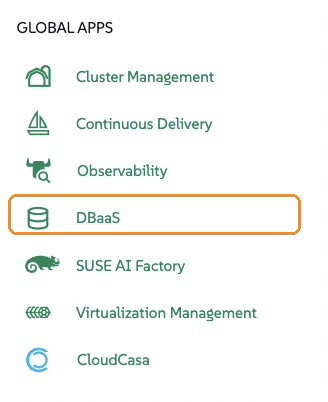
With the extension installed, Rancher gains a DBaaS entry under Global Apps. From there you can create and manage databases on any downstream SUSE Virtualization cluster that runs the operator, without switching to each cluster’s own UI:
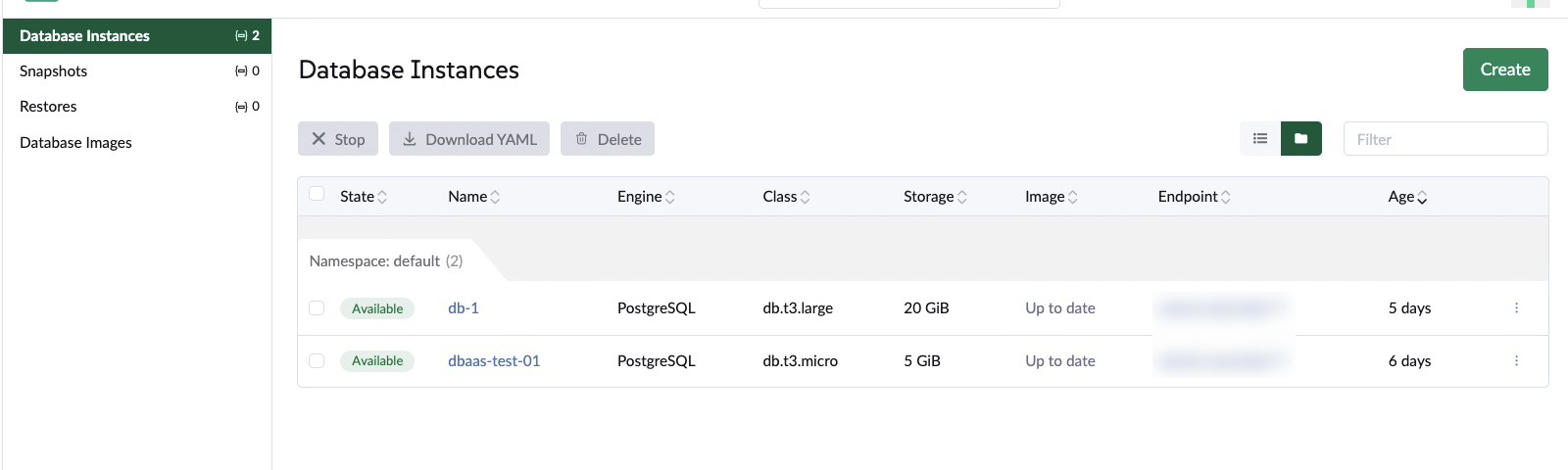
Its Database Instances page lists every instance with its state, engine, class, storage, image freshness and endpoint, plus pages for snapshots, restores and database images:
Limitations in 0.1.0
- One OS release per operator. Every instance uses the operator-wide OS setting; there’s no per-instance choice.
- Snapshots need a backup target.
DBSnapshotuses Harvester VM backups, which require a configured backup target and Longhorn-backed disks. My cluster has neither, so I haven’t tested snapshots yet. - It’s an early release. Expect rough edges, like the UI catalog issue above.
Verdict
For a 0.1.0 release, the core works: one short YAML object becomes a TLS-enabled PostgreSQL VM with credentials, a connection Secret and monitoring, in under two minutes. If you run SUSE Virtualization and want RDS-style databases on-premises, it’s worth watching. Next I want to try snapshots and restores once I have a backup target.